WordPaws

Manual

How to use WordPaws

Every screen of the app, with pictures. The screenshots show a sample learner called Mia and a small sample book.

  1. 1. Getting started
  2. 2. Today — the daily plan
  3. 3. The calendar
  4. 4. Learn cards
  5. 5. Spelling
  6. 6. Games
  7. 7. Tricky part and Word families
  8. 8. Fix wrong words
  9. 9. Your books and lists
  10. 10. Make your own list
  11. 11. Settings for each learner
  12. 12. Groups and sharing
  13. 13. Settings and backup

Getting started

Open WordPaws and tell it who is learning. A phone can hold several learners — each one has their own level, books, progress and pet. Nothing to sign up for.
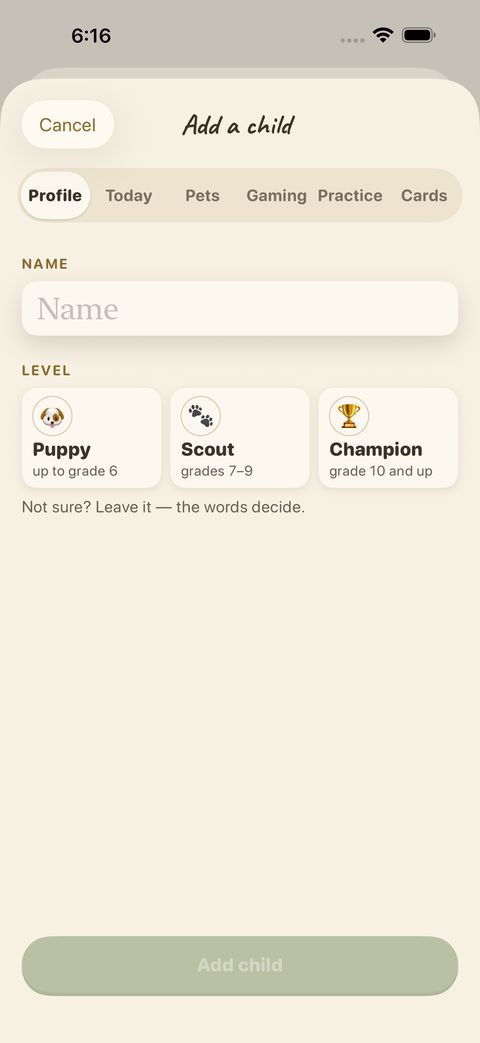
Type a first name and choose a level: Puppy (up to grade 6), Scout (grades 7–9) or Champion (grade 10 and up). Not sure? Leave it and the words decide.
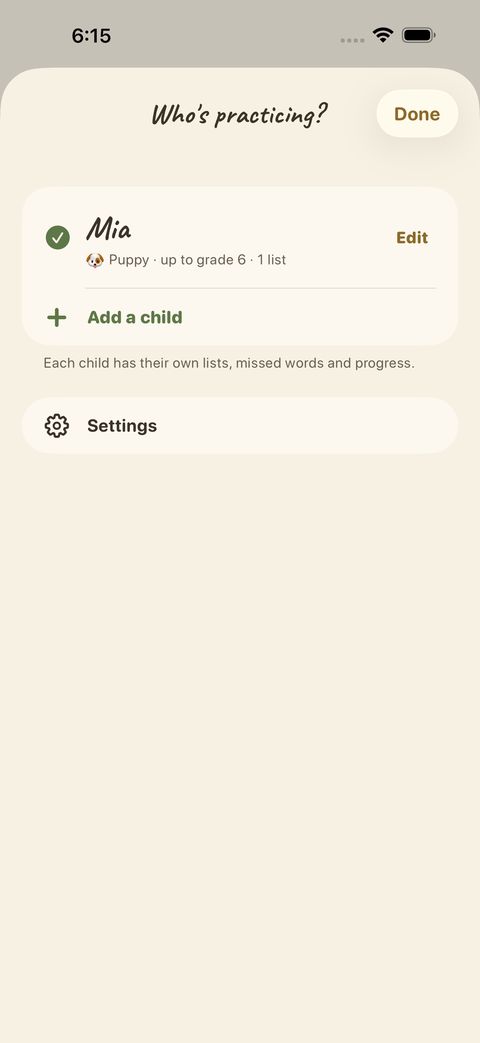
“Who’s practicing?” lists everyone on this phone. Tap Add a child for another learner; tap Edit to change one. Settings is at the bottom.

Names and progress stay on the phone. They are never sent to us.

Today — the daily plan

Today is the front door. It plans about 15 minutes: a few new words, the words that are due for review, and four short games. The pet eats the day’s words as breakfast and dinner.
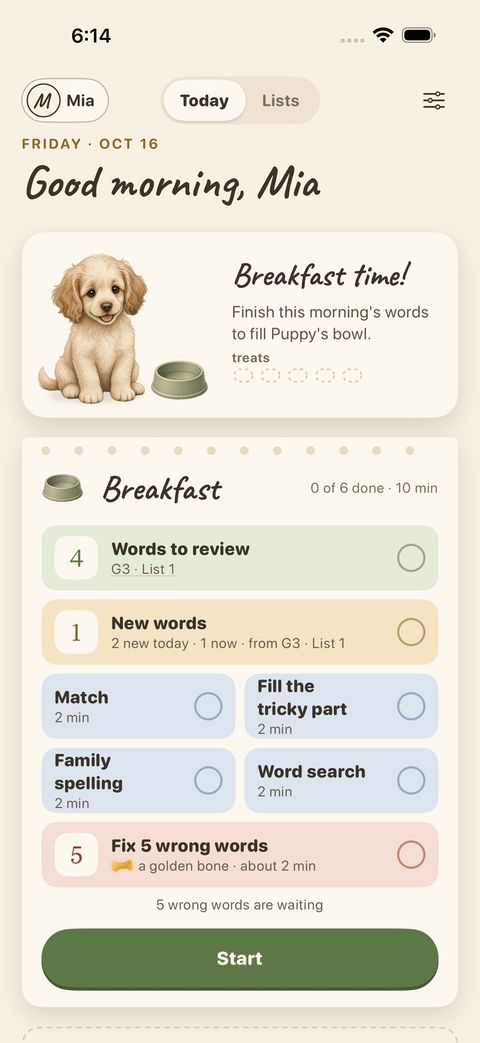
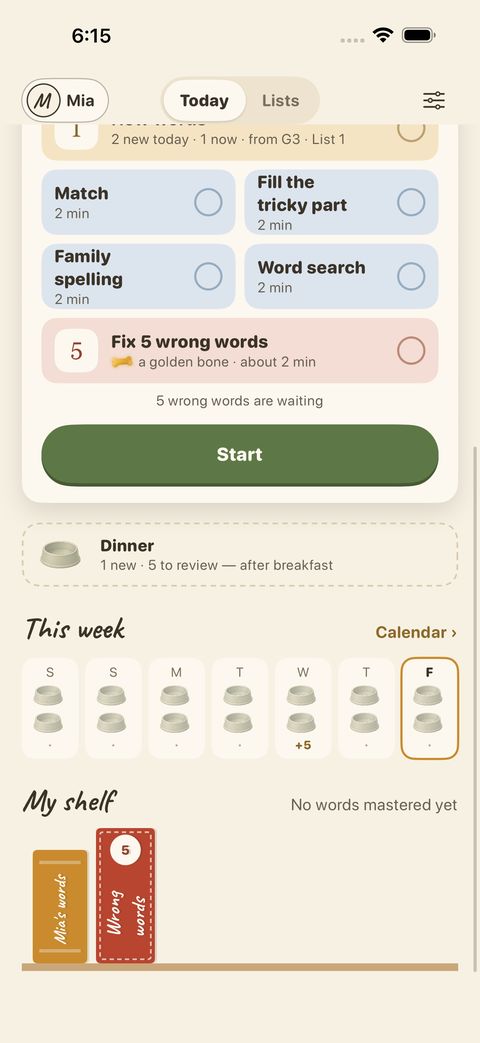
Breakfast and Dinner are the two parts of the day. Each line is a small job: Words to review, New words, and short games such as Match, Fill the tricky part, Family spelling and Word search. Tap Start and WordPaws walks you through them.
Scroll down for Dinner, the week at a glance, and My shelf — the books this learner is working on, with Wrong words standing at the end.
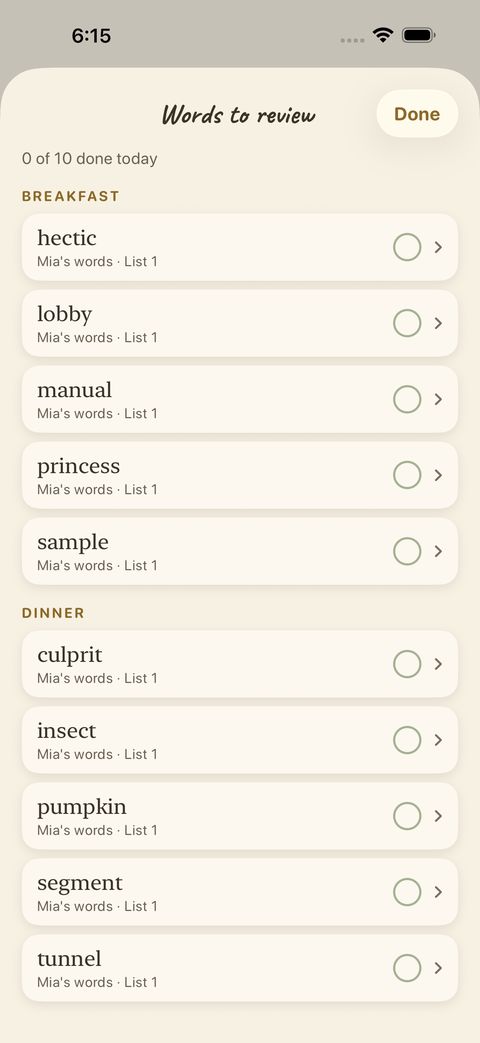
Tap Words to review to see exactly which words are coming up, for breakfast and for dinner. Tap a word to open its page.
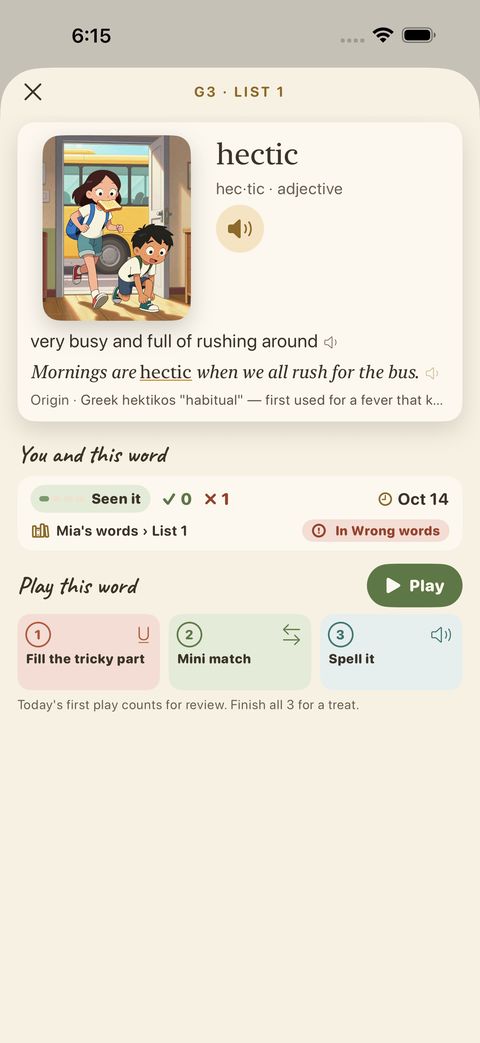
A word’s page: picture, meaning, sentence, origin, and what you have done with it — how often you saw it, when, and whether it is in Wrong words. “Play this word” starts a short practice on just that word.

Reviews come back just when you are about to forget a word, so you see easy words rarely and hard words often. Miss a few days and the plan does not pile up: WordPaws welcomes you back gently and eases in again.

The calendar

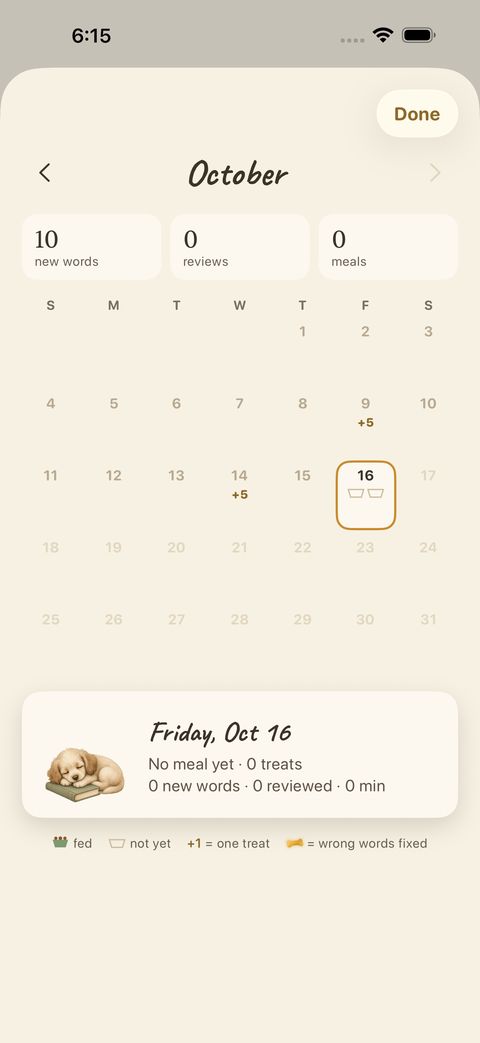
Tap Calendar (next to “This week”) to see every day at a glance.
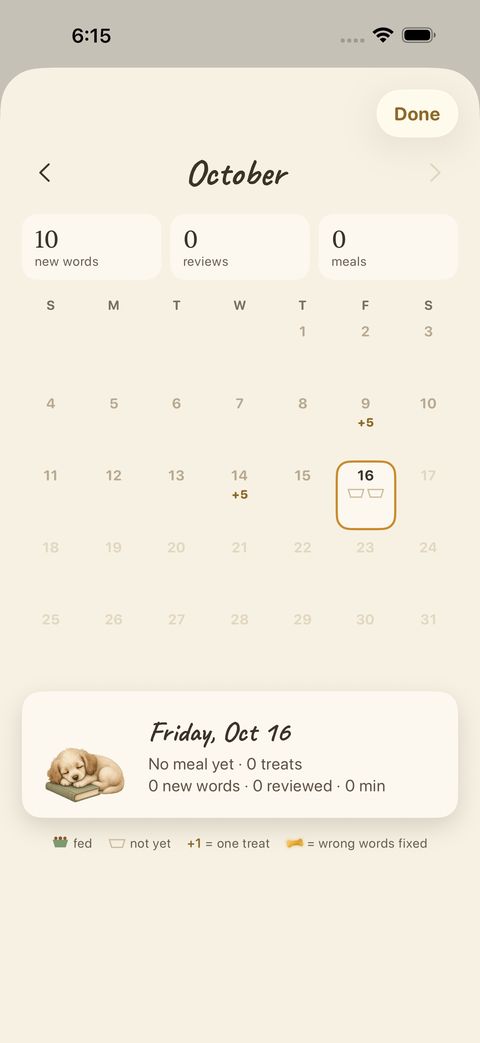
Each day shows new words learned, words reviewed, and meals eaten. Tap a day for details.
The key at the bottom explains the marks: fed, not yet fed, one treat, and wrong words fixed.

Learn cards

A new word starts on a learn card: a picture, a clear recorded voice, the meaning, an example sentence and where the word comes from.
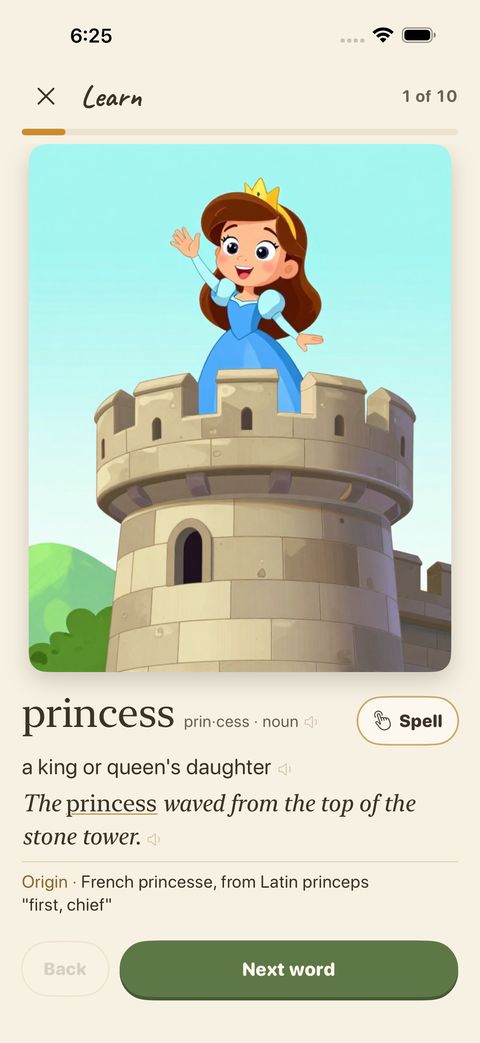
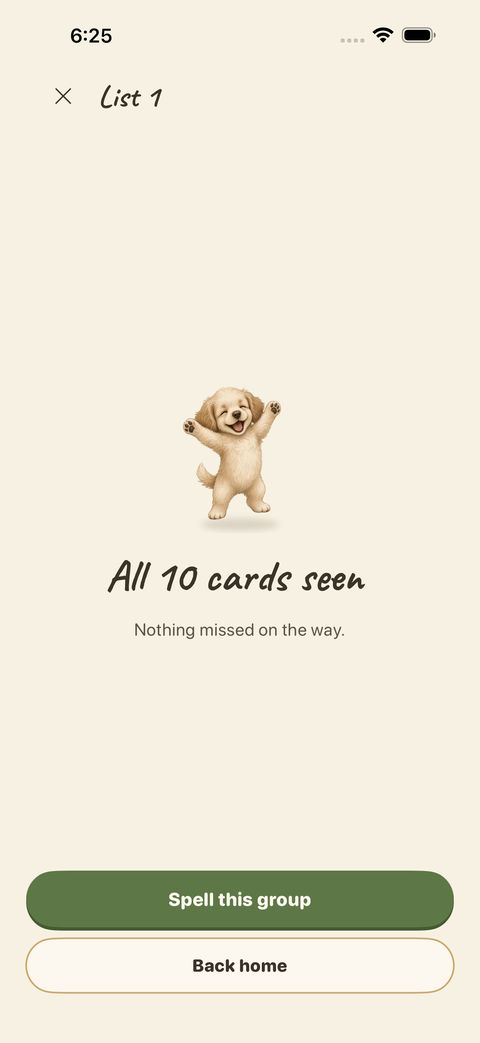
The word with its syllables, the picture, the meaning, a sentence using the word and its origin. Tap the speaker to hear it again. “Spell” turns the card over: there you type the word — or tap Say letters and spell it out loud — and “Card” flips back.
When every card in the run has been seen, you finish with a short summary.

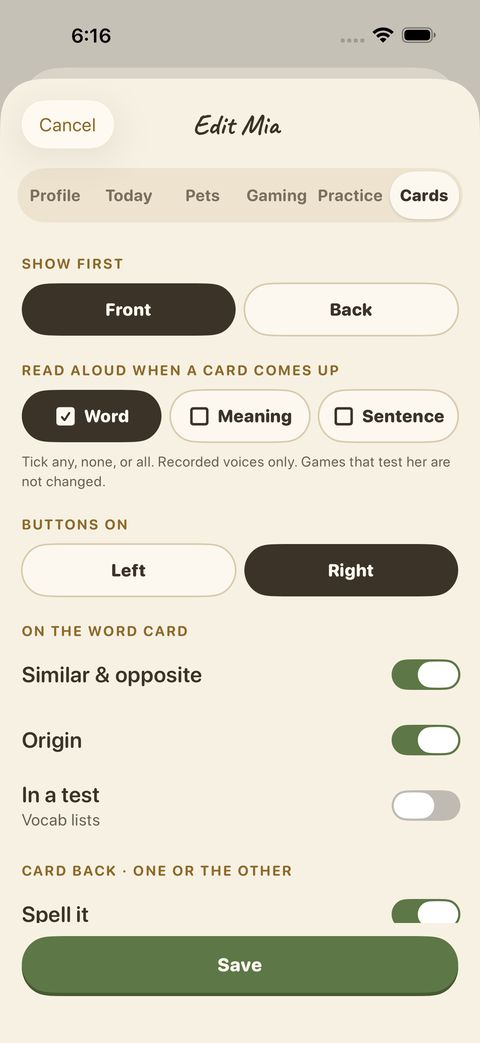
In a learner’s settings (Cards) you choose which side shows first, which parts are read aloud when a card comes up, and whether similar & opposite words, origin and “in a test” are shown.

Spelling

Hear the word, then spell it. A run is short — about 8 words — and Today may suggest it as part of a meal.
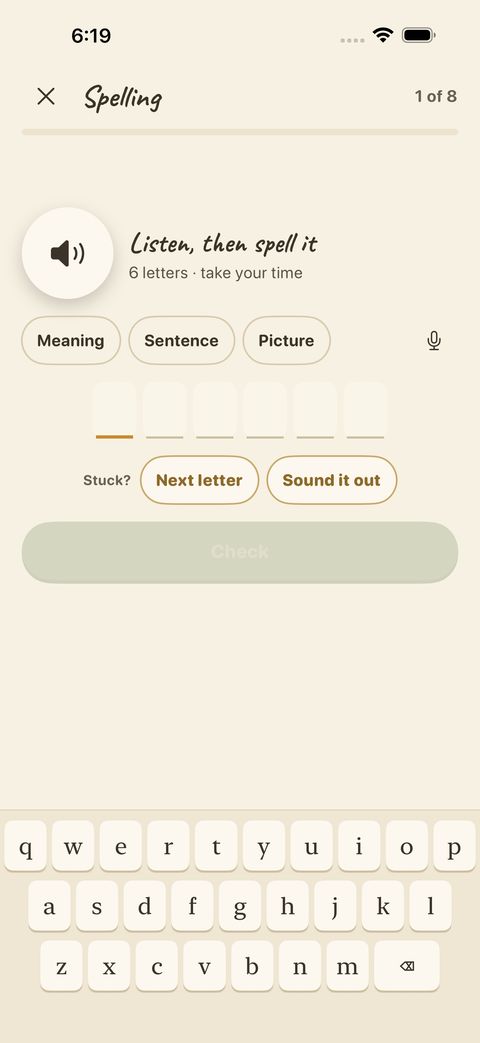
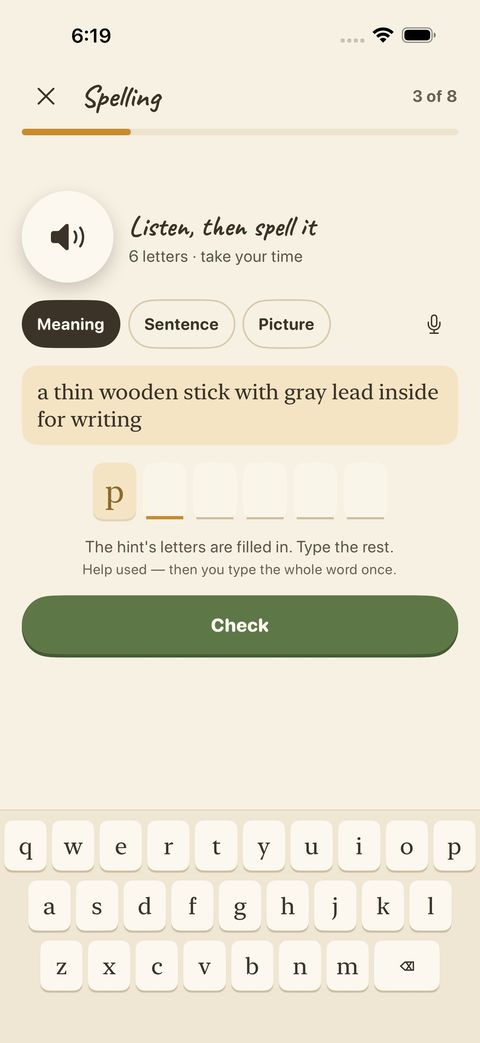
Tap the speaker to hear the word. The chips (Meaning, Sentence, Picture) give a clue when you need one. Type with the keyboard, or tap the microphone and say the letters.
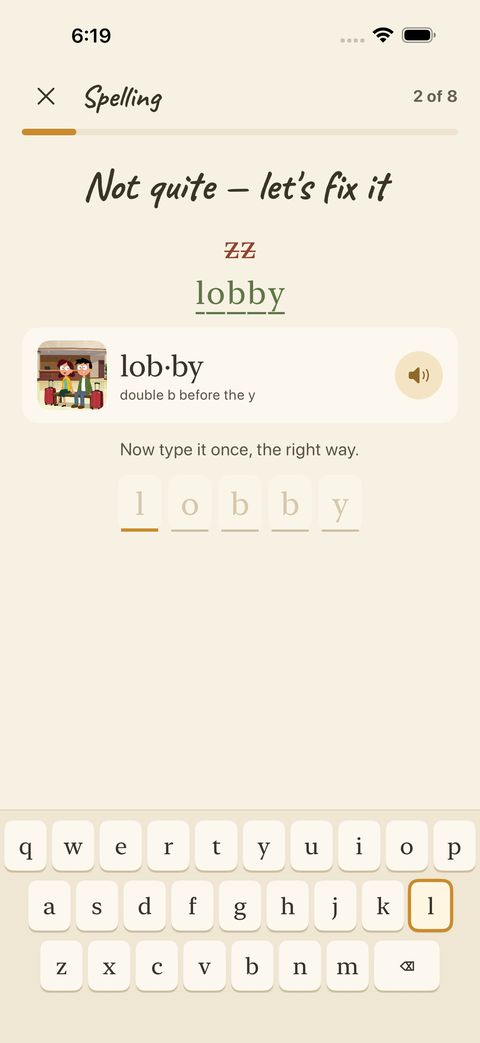
Stuck? “Next letter” fills the next letter for you; “Sound it out” fills in the whole word as light letters. Afterwards you type the whole word once over the light letters — that is how it sticks.
A wrong answer is never a dead end: you see the right spelling with the wrong letters crossed out, then type it once the right way.
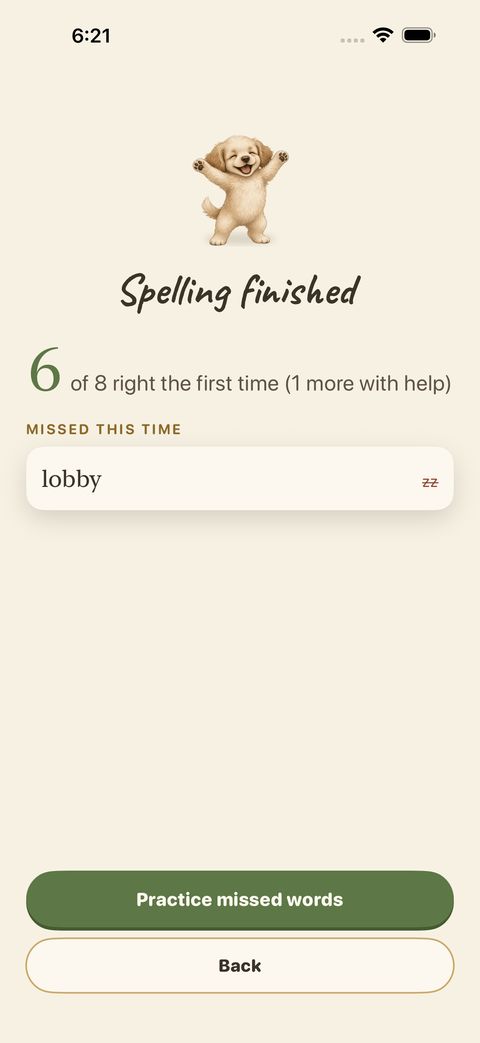
At the end: how many were right the first time, and the words you missed. “Practice missed words” runs them again.

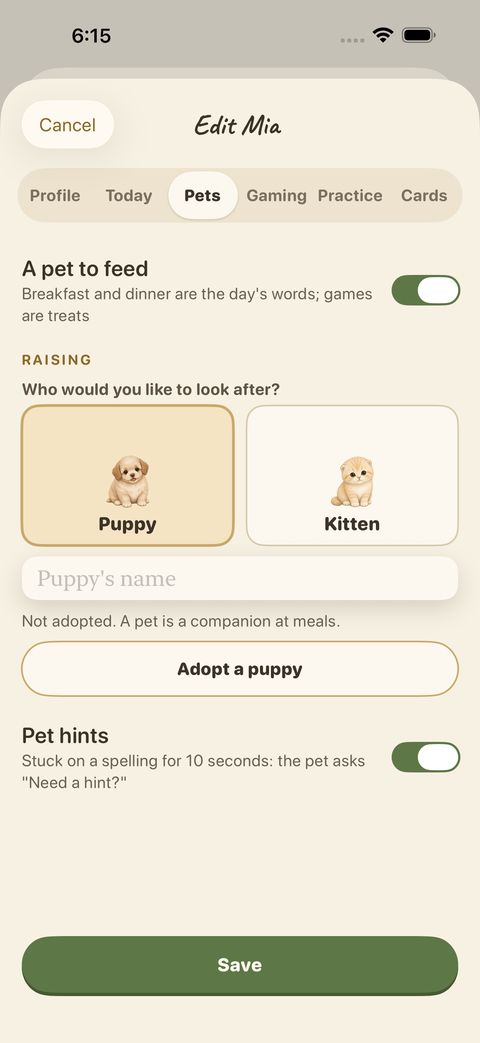
If you stay stuck for ten seconds the pet may ask “Need a hint?” — you can turn that off in the learner’s settings (Pets).

Games

Four games help words stick in different ways. Each run is two to three minutes.
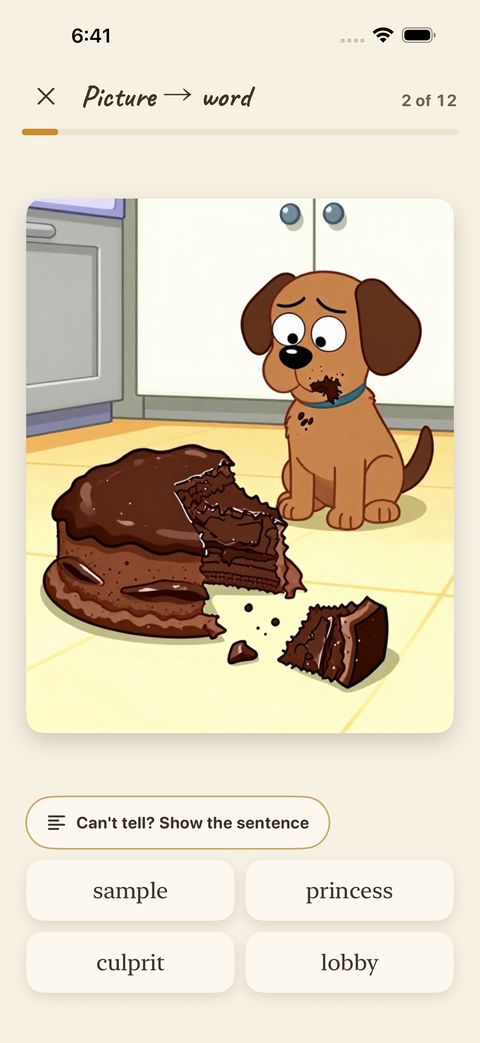
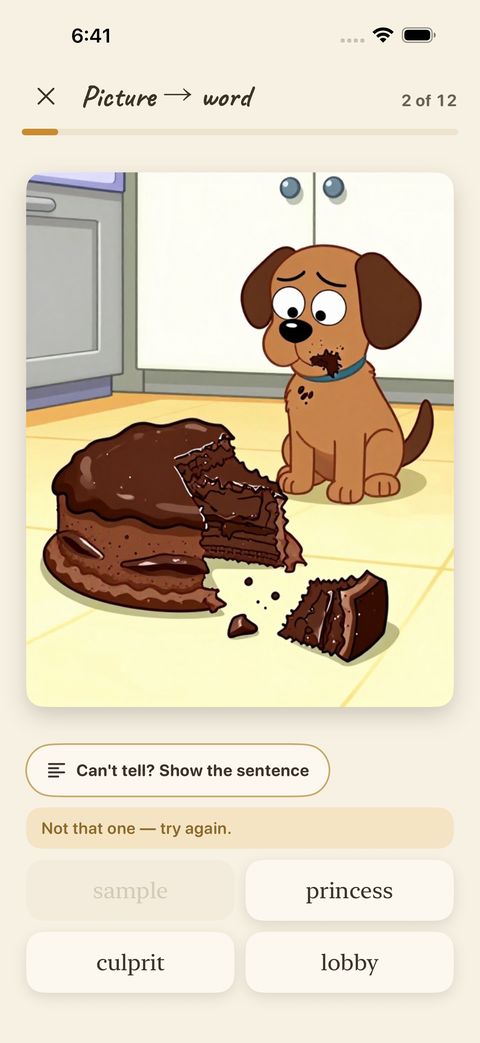
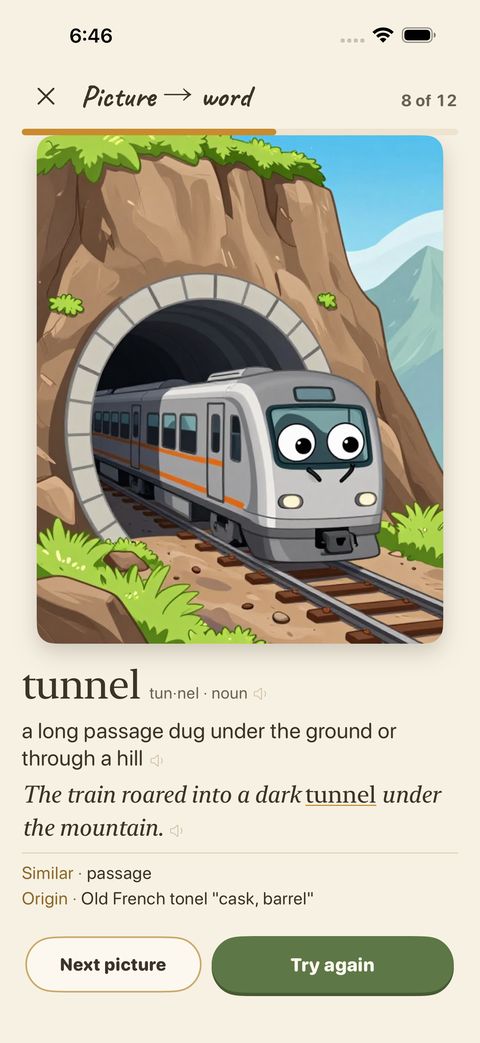
Picture → word: look at the picture and pick its word.
A wrong pick says “Not that one — try again”; that word stays greyed out.
After you answer you see the word, its meaning, a sentence and its origin. Then “Next picture”, or “Try again”.
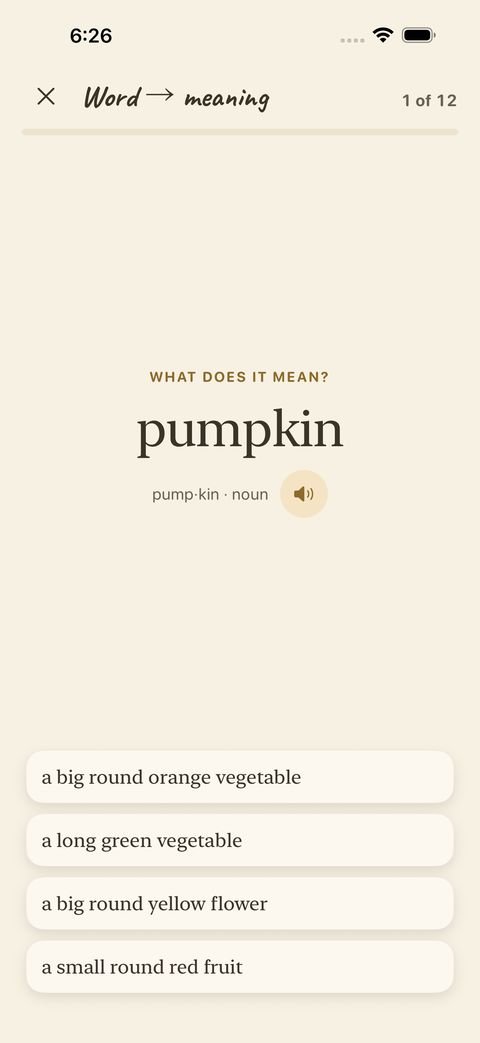
Word → meaning: read the word, pick the meaning that fits.
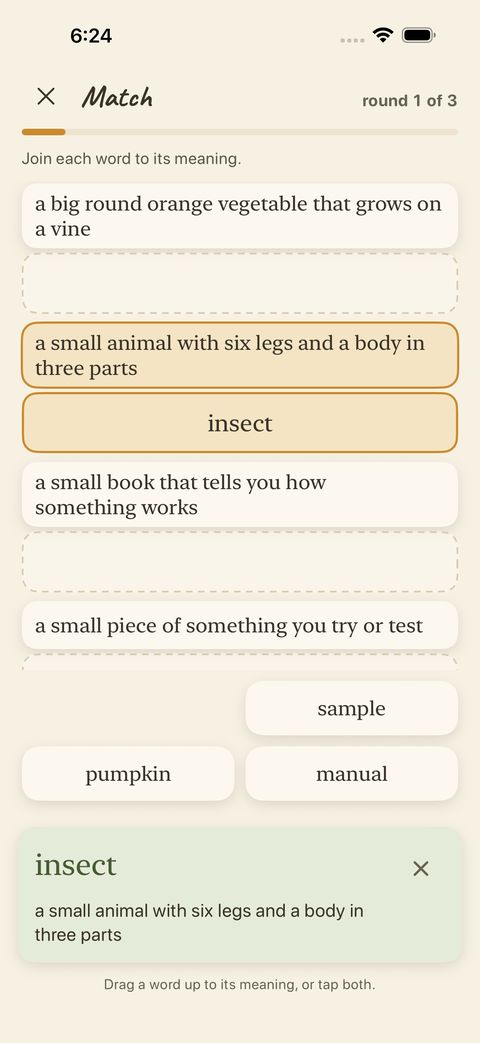
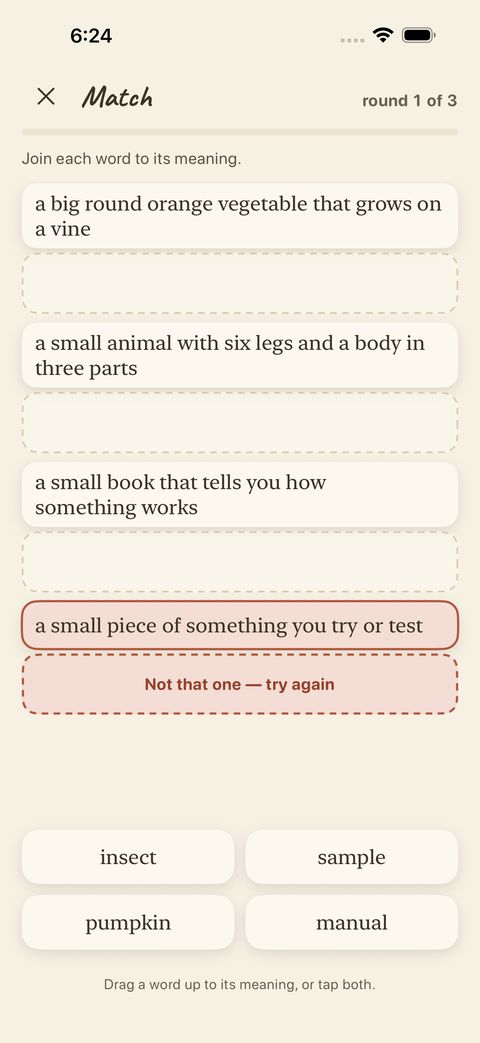
Match: drag each word onto its meaning (or tap a word, then a meaning). Three short rounds.
A wrong join is shown and you try again — nothing is lost.
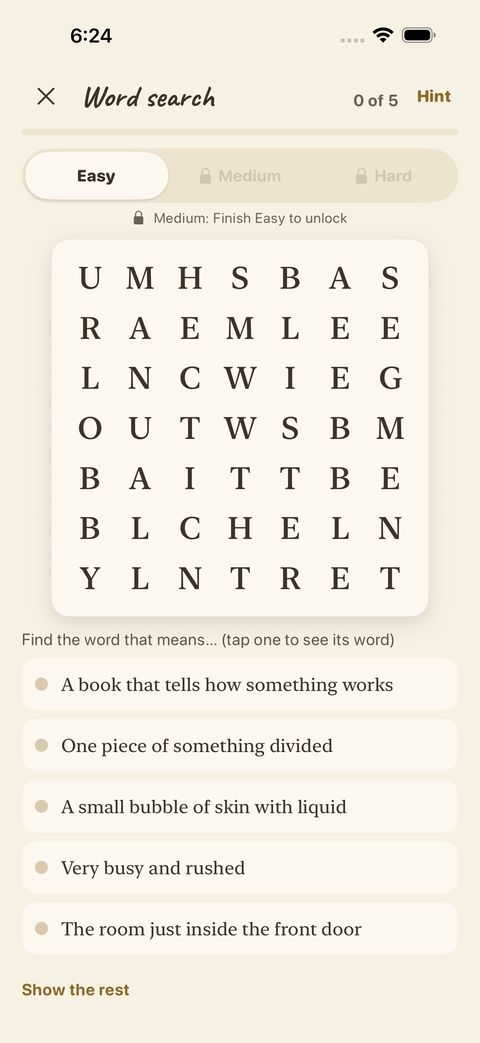
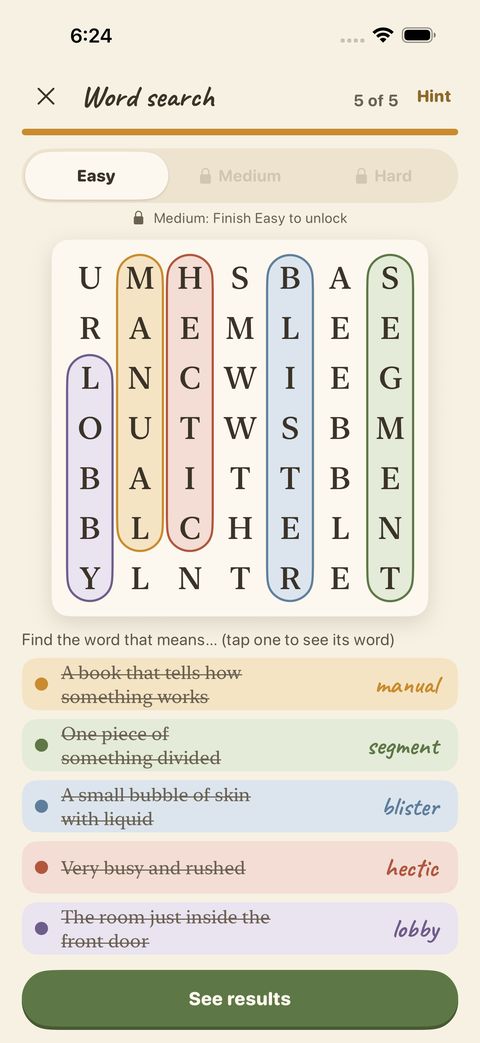
Word search: find the words in the letters, using the meanings as clues. Easy, Medium and Hard open as you go.
Found words light up in colour, and “Hint” can point at one.

Tricky part and Word families

For learners at the early levels, two games work on spelling patterns.
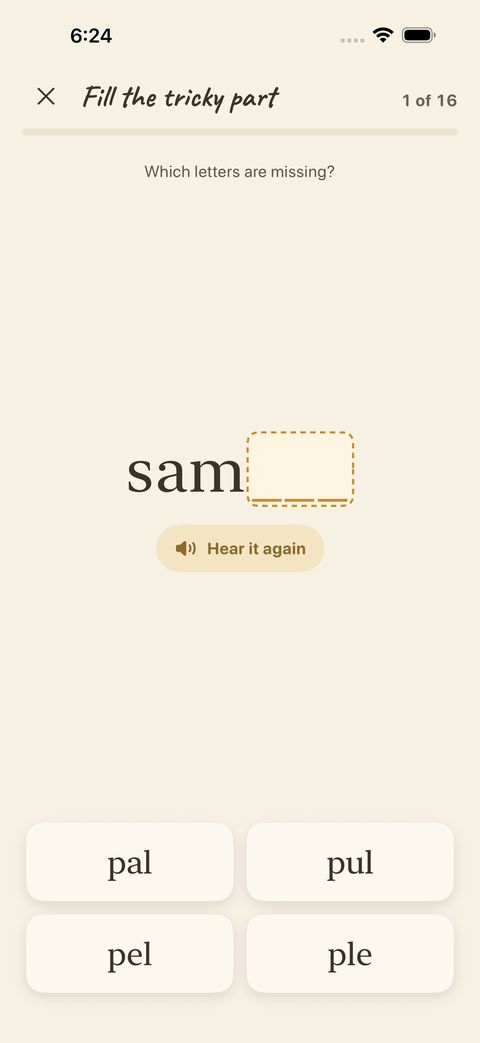
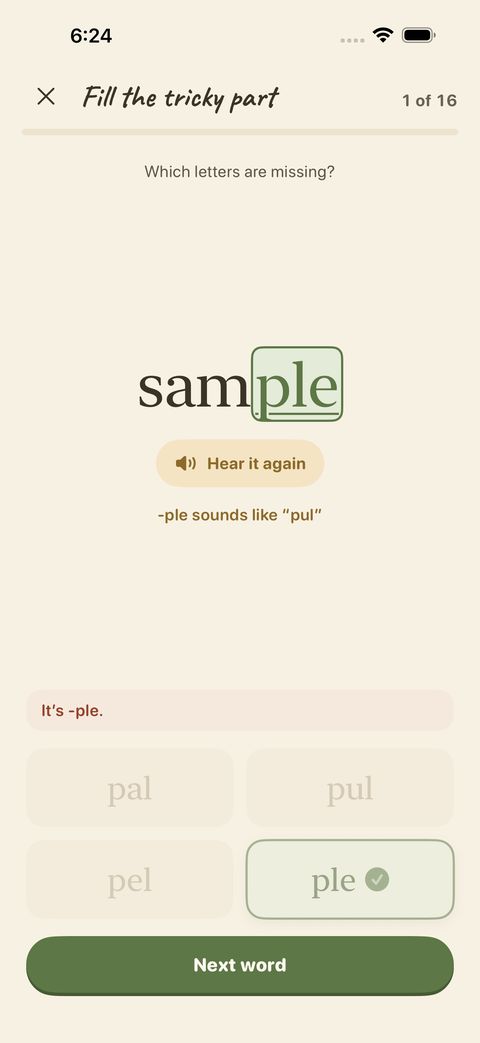
Fill the tricky part: the word is shown with a piece missing — pick the letters that complete it.
A right pick completes the word, with a note on how the pattern sounds.
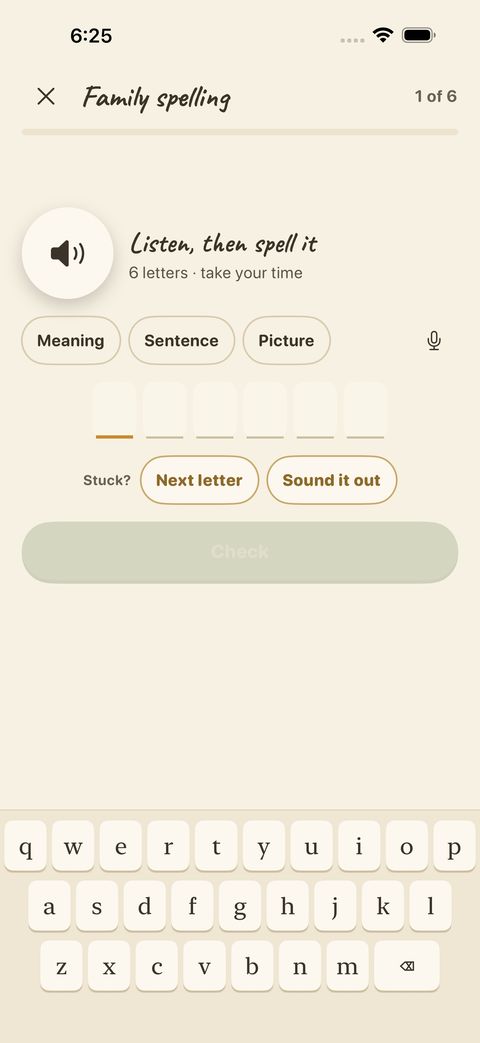
Family spelling: spell a word from the same family as one you know, using the family’s sound as the clue.

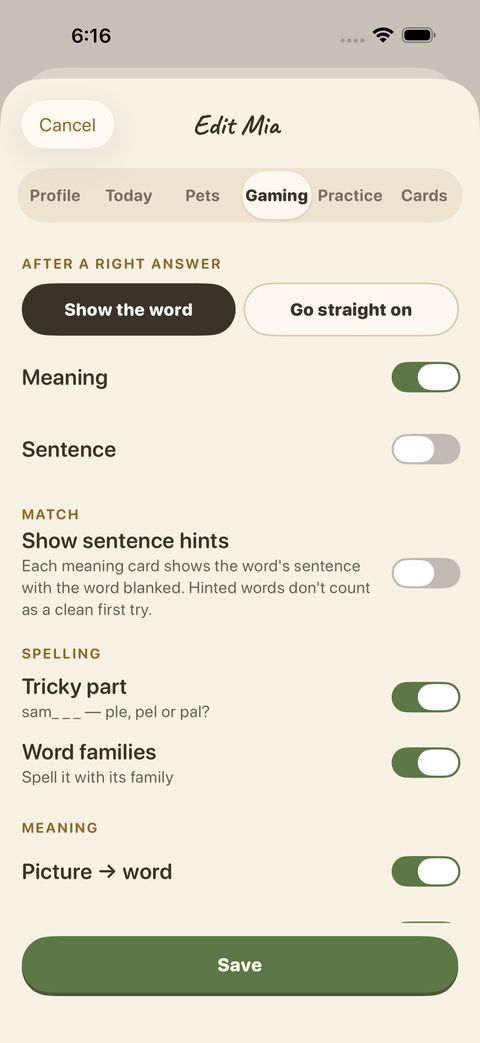
Books without spelling patterns don’t show these two games. A parent can switch them on or off in a learner’s settings (Gaming).

Fix wrong words

Every word you missed, from every book, waits in Wrong words. Fixing them is part of the daily plan.
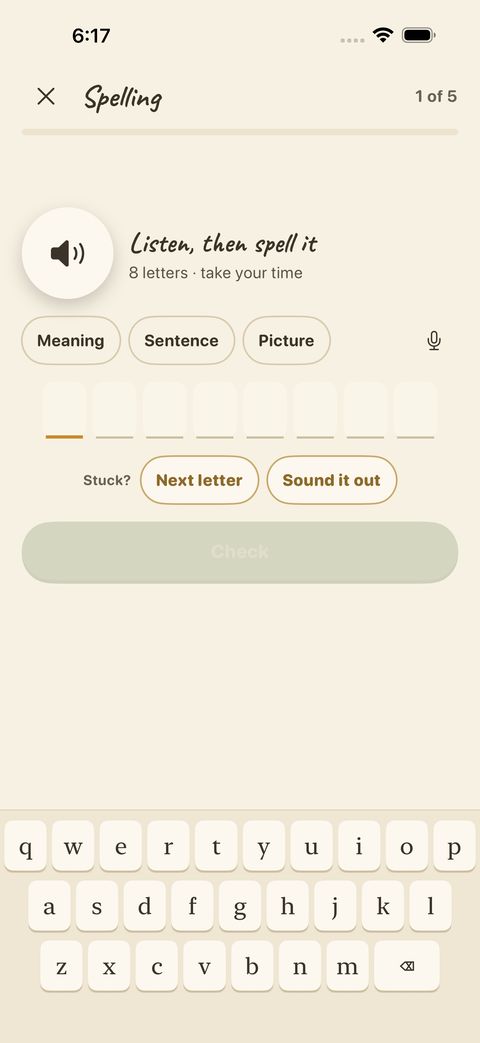
“Fix wrong words” turns your missed words back into short spelling runs. Words come out of Wrong words after you get them right on two different days.

Your books and lists

The Lists tab is your bookshelf. A book holds lists; a list holds words.
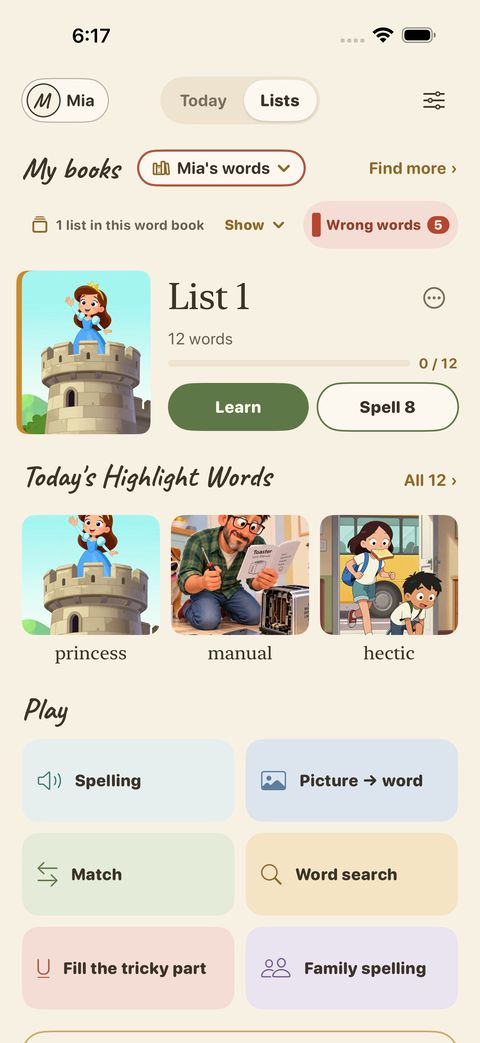
My books shows the book you are using. Each list shows its words and your progress, with Learn and Spell buttons. Below are Today’s Highlight Words and the Play buttons for every game.
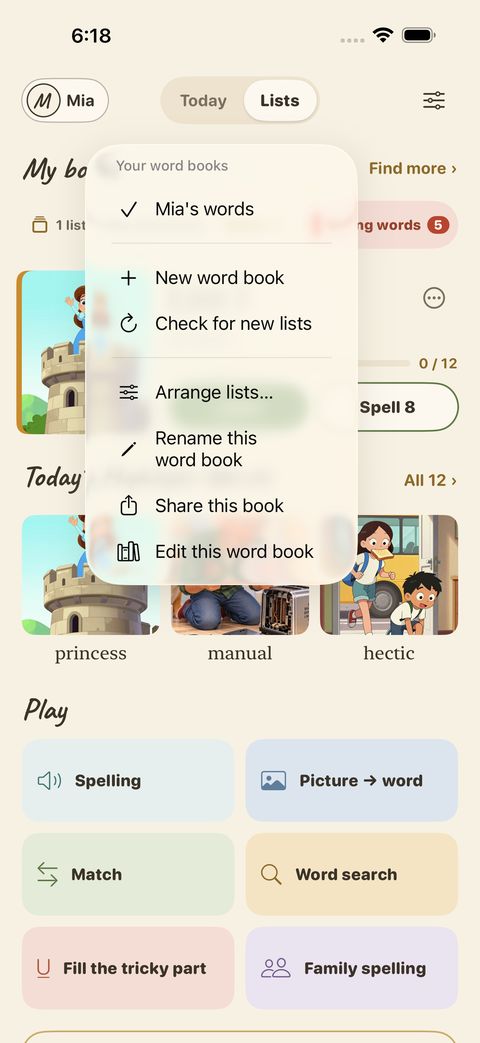
The book menu: switch books, make a New word book, Check for new lists, Arrange lists, Rename, Share this book, or Edit this word book.
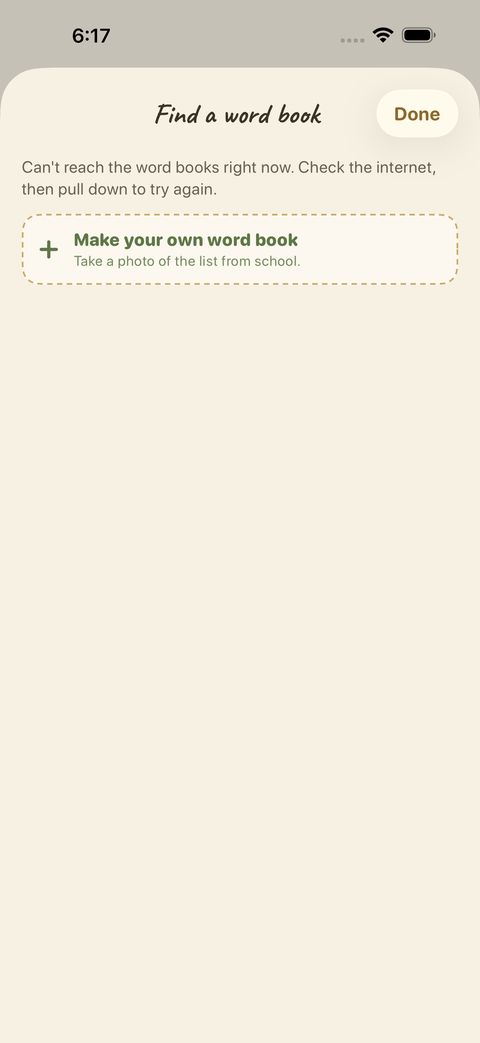
Find more books opens the book list on our card site. Pick a book and it downloads to your phone — pictures, voices and all.
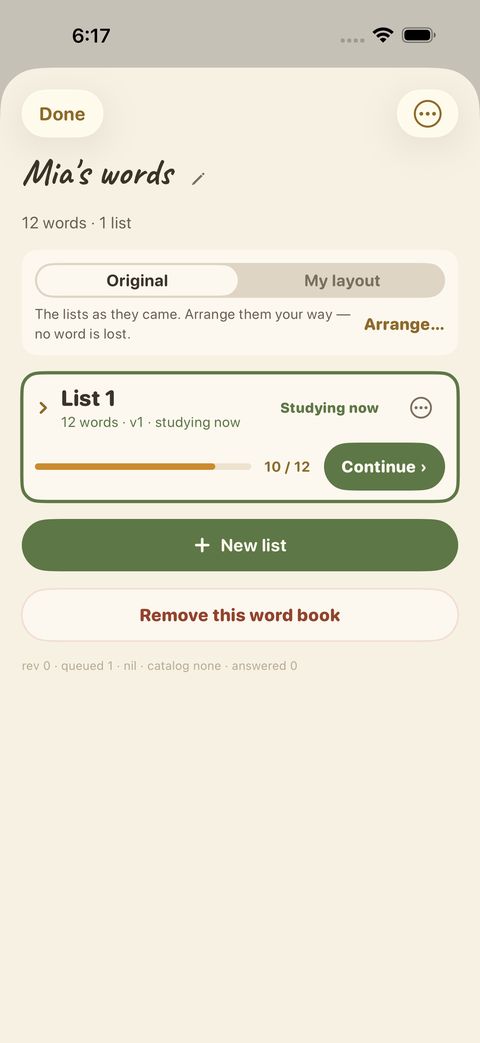
A word book’s page lists its lists. Continue picks up where you stopped; New list adds your own.
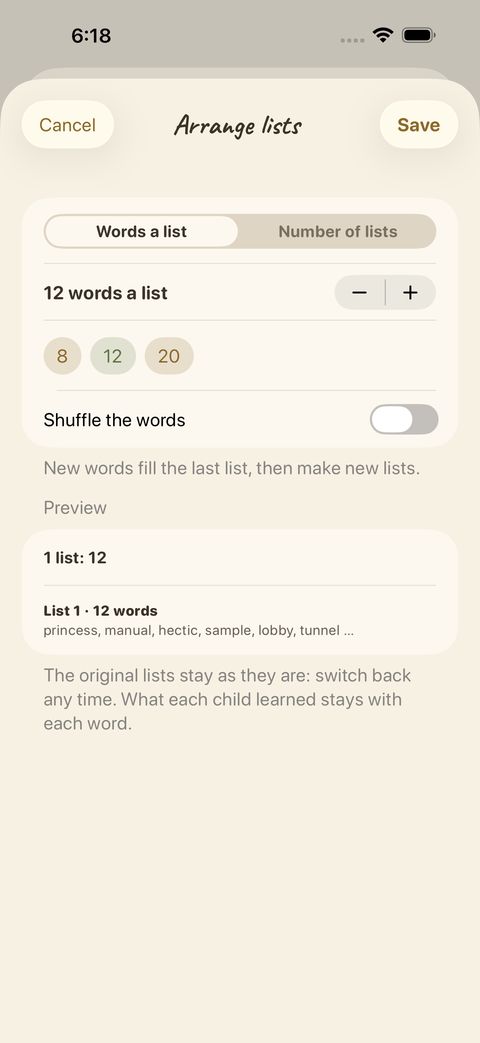
Arrange lists: choose how many words a list holds, shuffle, and preview the result before you save.
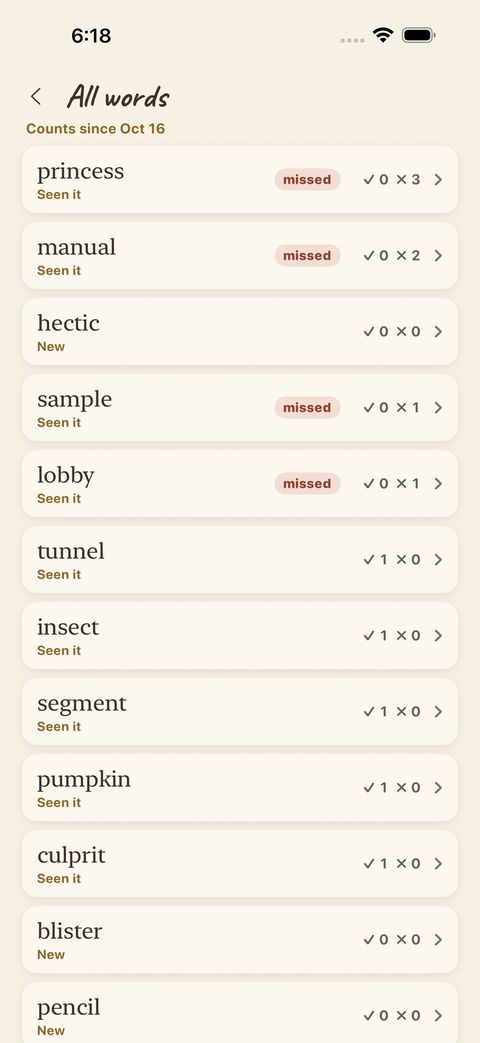
All words: every word in the book with how often you saw it, got it right, and whether it is new or was missed.
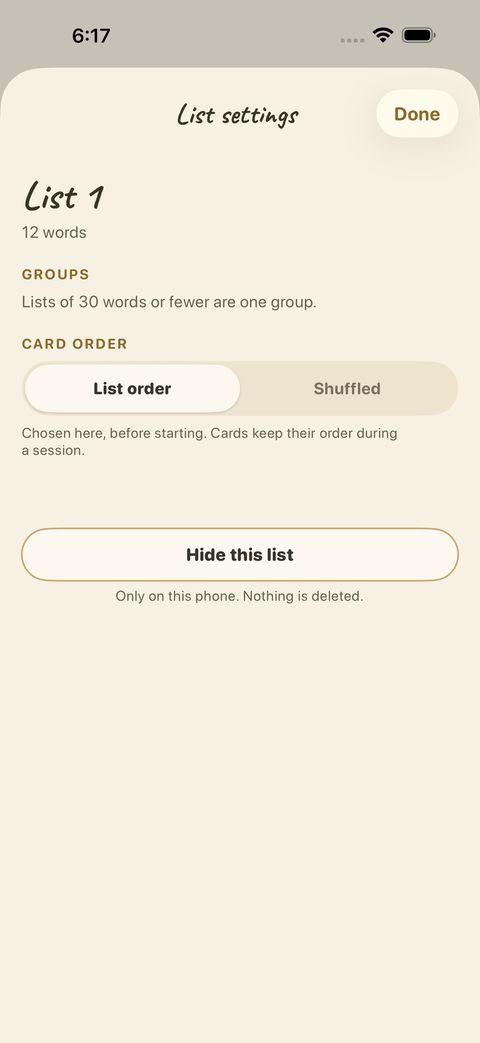
List settings: card order (as written or shuffled), and Hide this list.

Once a book is on the phone it works offline.

Make your own list

Got a word list from school? Turn it into cards.
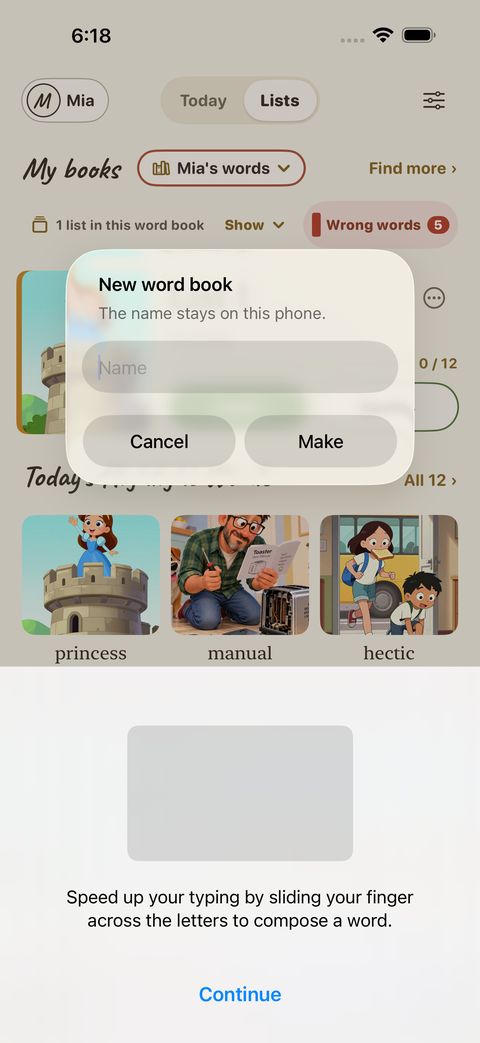
Start with New word book: give it a name that stays on this phone.
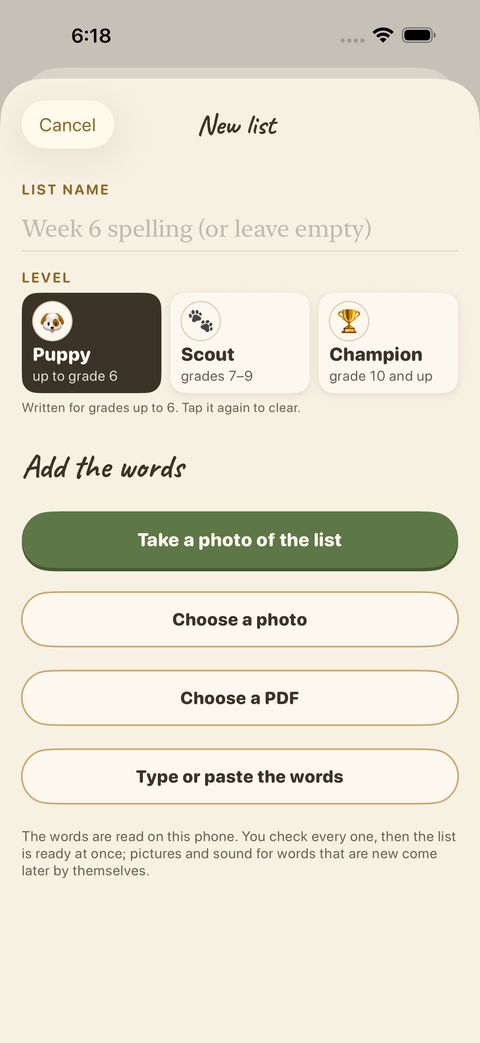
Name the list, choose a level, then add the words: Take a photo of the list, Choose a photo, Choose a PDF, or Type or paste the words.

The photo or PDF is read on your phone and is not uploaded. You check every word before it is saved. Words that have no card yet are sent to be made and arrive on your phone within a few days — the app checks by itself.

Settings for each learner

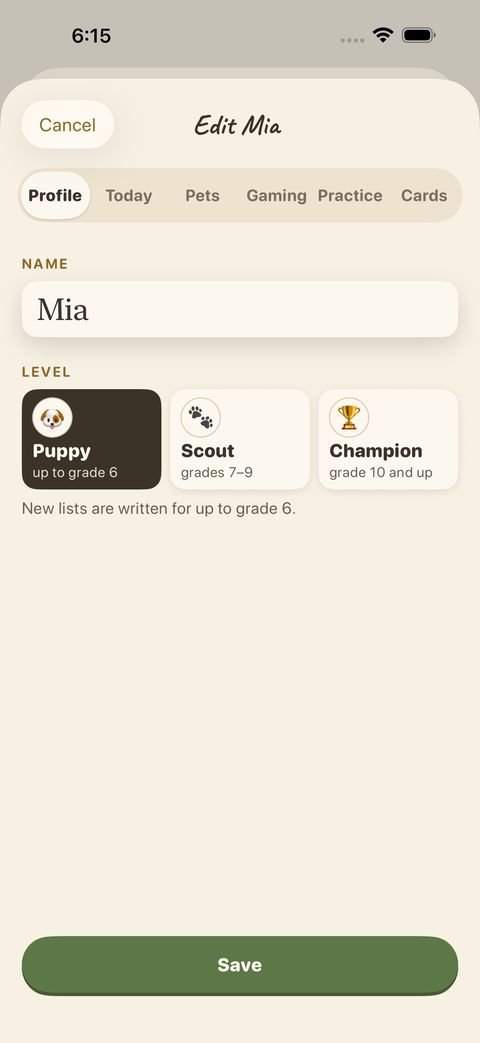
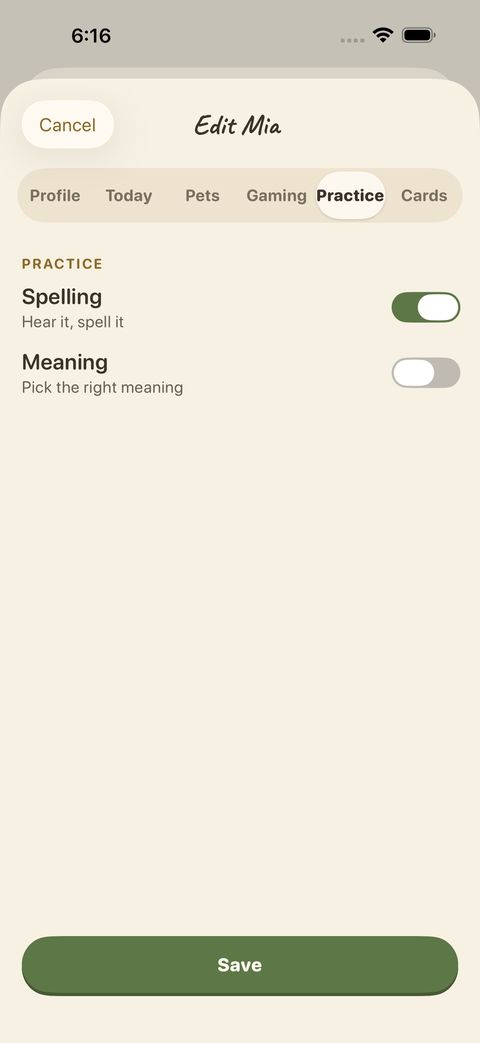
Tap Edit on a learner to tune the app to them. Six tabs:
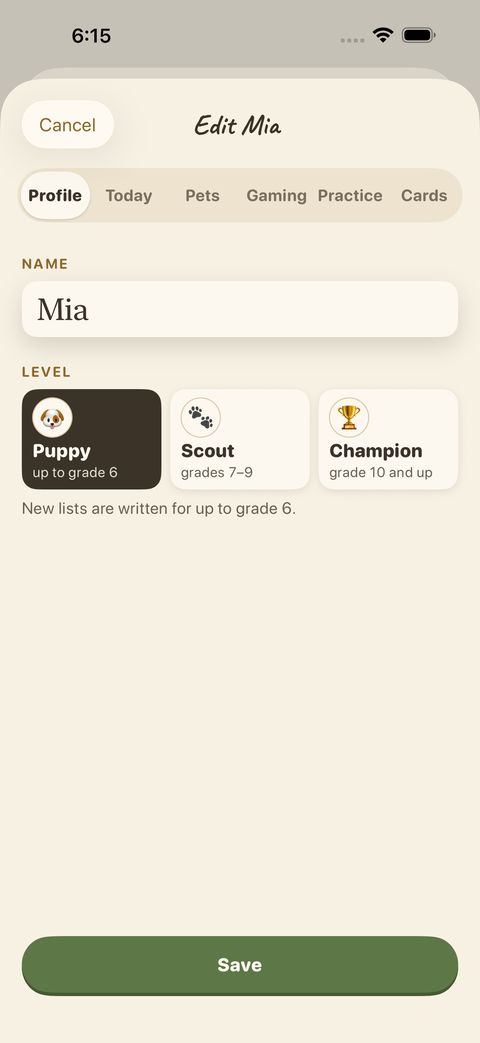
Profile: name and level.
Today: how the daily plan is shaped for this learner.
Pets: choose a puppy or a kitten, name it, and turn pet hints on or off.
Gaming: what shows after a right answer, sentence hints in Match, Tricky part, Word families and Picture → word.
Practice: switch Spelling and Meaning practice on or off.
Cards: which side shows first, what is read aloud, button side, and what appears on the word card.

Groups and sharing

A group lets a teacher or parent (the leader) give books to others.
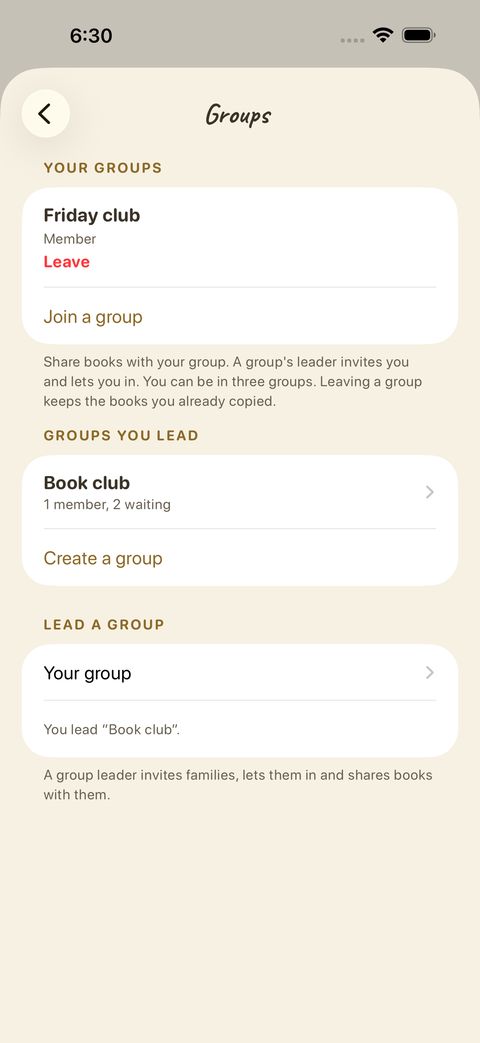
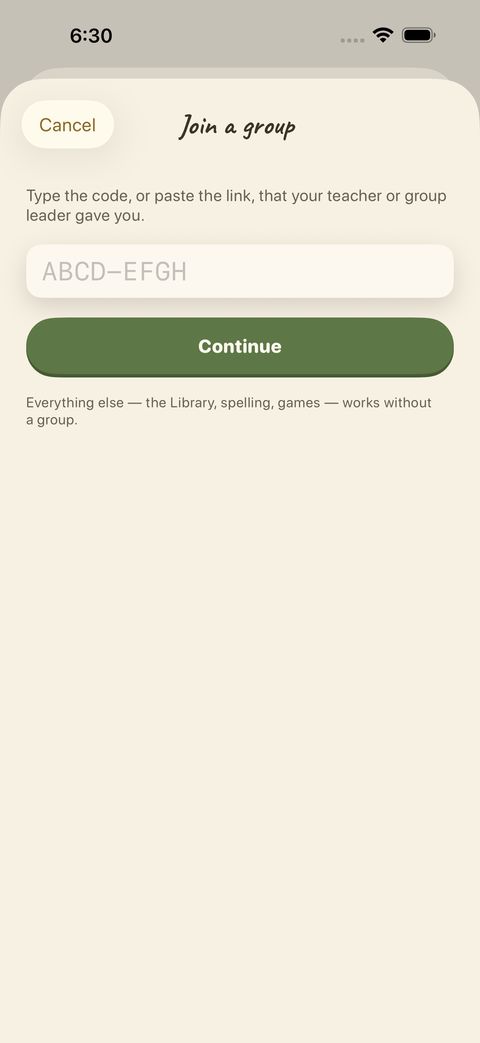
Your groups, the groups you lead, and a way to join one. A group has at most 50 members; you can be in up to 3.
Join a group: type the code (or paste the link) your teacher or group leader gave you.
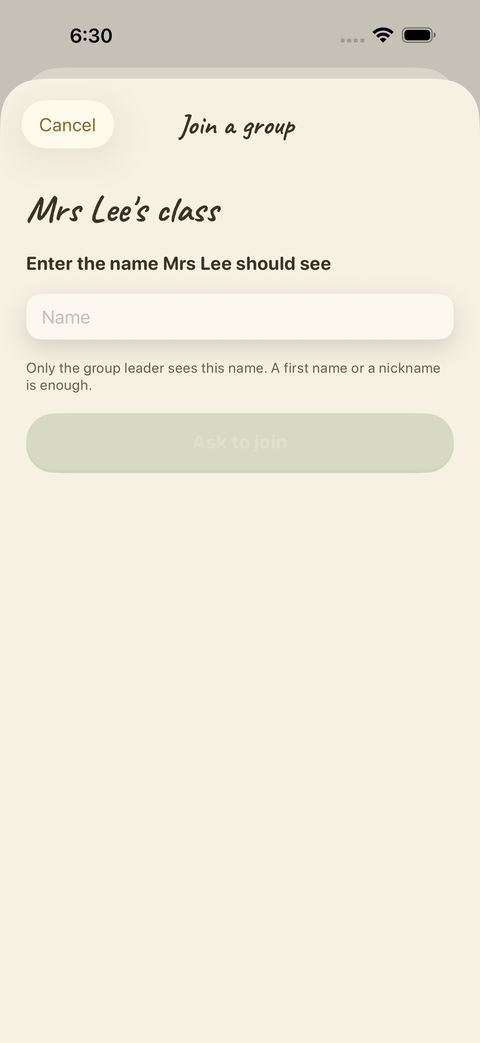
Enter a name for the leader to see — a first name or nickname is enough. Only the leader sees it.
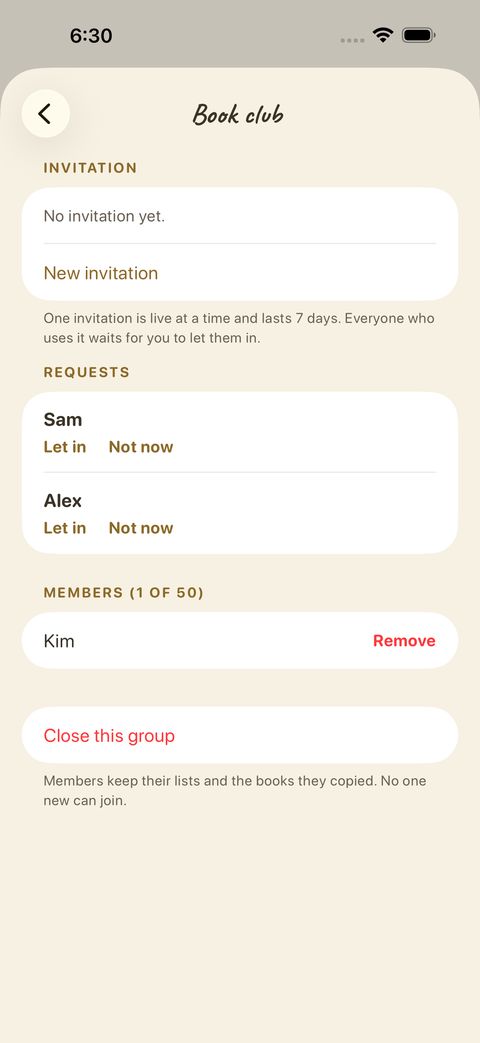
If you lead a group: invite people, let in or turn away requests, see members, close the group.
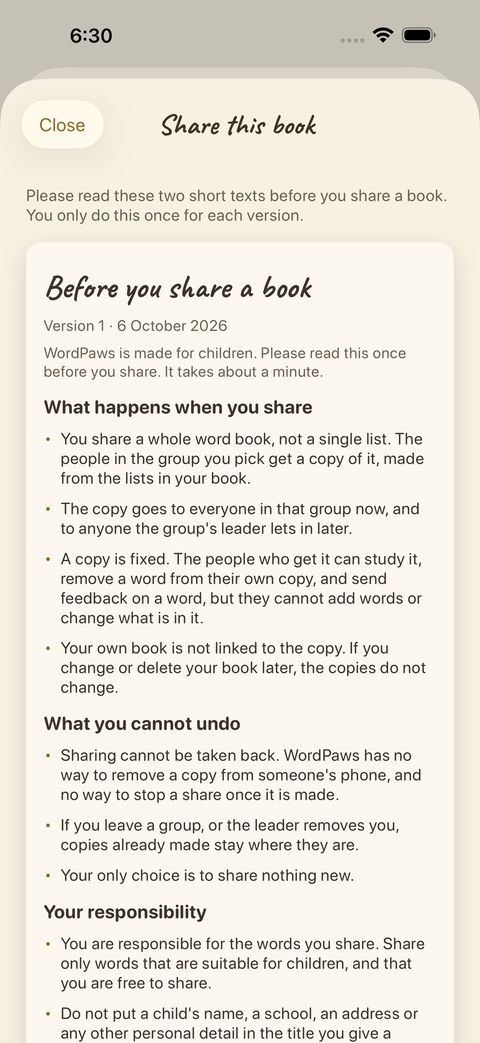
Before sharing a book you read two short pages — what happens when you share, and your responsibility.
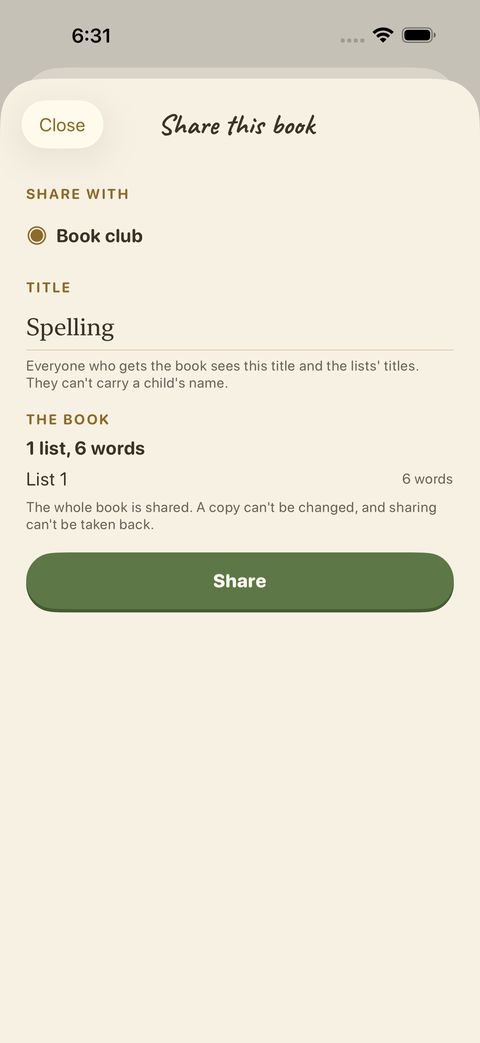
Share a whole book with the group. Only words and titles travel — never a child’s name or answers. Everyone gets a copy that cannot be changed.

A share cannot be taken back, and children’s names and progress are never sent. The privacy policy has the details.

Settings and backup

Settings is behind the three-line icon on the Today and Lists screens.
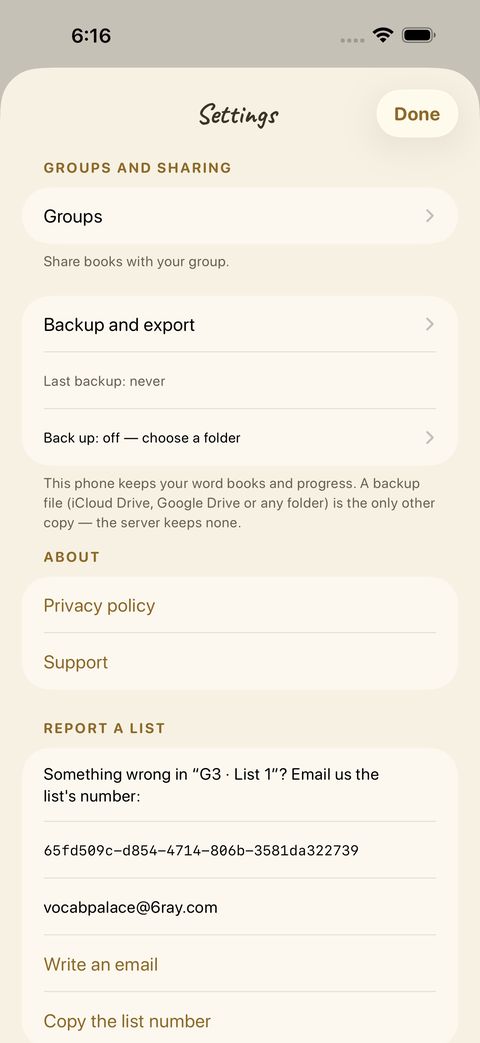
Groups, Backup and export, Privacy policy, Support — and Report a list, if something looks wrong in a book.
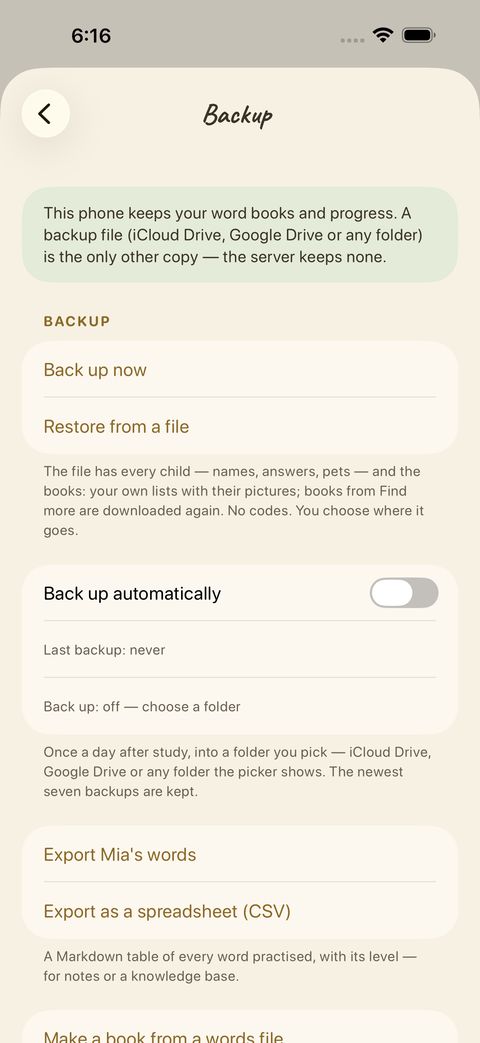
Back up now saves a file with your learners, progress and pets in a folder you choose (Files, iCloud Drive…). Restore from a file brings it back on a new phone. You can also back up automatically once a day, export a learner’s words as a Markdown or spreadsheet file, and make a book from a words file.

The backup is a file only you hold; the server never has a copy.